How do I set an online alarm clock?
To set an online alarm clock, pick the hour and minute in the tool above, choose a sound, press Set alarm and leave the browser tab open on an awake, unmuted computer; it rings at that time with Stop alarm and a 5-minute Snooze.
On this page
- How to use the online alarm clock
- Which alarm settings can you change before bed?
- What happens when the alarm goes off?
- How do you test a browser alarm before trusting it overnight?
- Can the alarm open with a wake-up time already chosen?
- Can you run more than one alarm at once?
- How does the online alarm clock keep accurate time?
That is the whole job, and it takes about ten seconds. The tool is browser-based and free, with no account, no sign-up, no download and no installation, so it suits a desktop at home, a hotel desk, a borrowed laptop or a work machine where you can't add apps. There is no separate Start alarm step: a live countdown appears the moment you confirm, which is the quickest way to spot a typo such as PM instead of AM.
I keep one rule in mind: an alarm that lives in a web page is only as dependable as the device under it. Mobile browsers and sleeping laptops are where most missed alarms come from, so the sections below cover setup first, then the habits that make a browser alarm trustworthy overnight.
How to use the online alarm clock
The online alarm clock works in four steps: choose the time, add an optional label, pick a sound, then press Set alarm. The top of the tool shows the current time with seconds and today's date, so you can confirm the computer's clock is right before you rely on it.
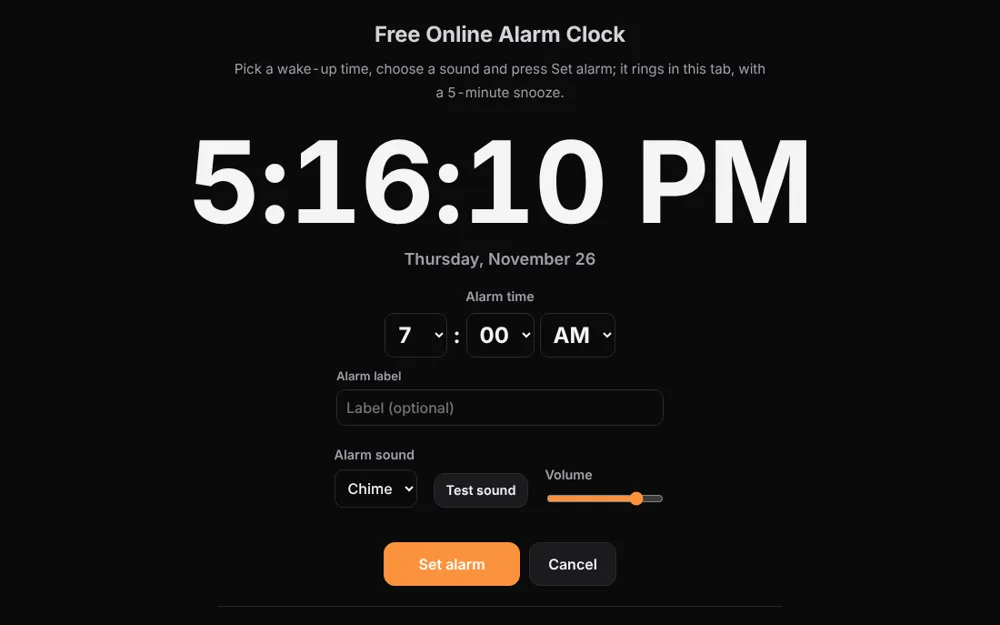
- Pick the time. Select the hour and minute; where your region uses 12-hour time you also choose AM or PM, otherwise the picker uses 24-hour time.
- Add a label (optional). A word like "Gym" or "Flight" shows up when the alarm rings.
- Choose a sound. Choose Beep, Chime, Digital, Soft or Bell, set the volume slider and press Test sound to test it.
- Press Set alarm. Then leave the tab open: the page does the timing.
Worked example: at 10:00 PM I set 6:30 AM, label "Gym", sound Chime, volume about two-thirds. The status line reads "Alarm set for 6:30 AM" with tomorrow's weekday in brackets, and the countdown reads Rings in 08:30:00. If you enter a time that has already passed today, the tool schedules it for the next day automatically. Your theme, sound and volume preferences are remembered in your browser for next time.
Which alarm settings can you change before bed?
The alarm settings you can change are the time, the label, the sound, and the volume, and each one can be adjusted before you press Set alarm. That short list is deliberate: fewer switches means fewer ways to break a wake-up call at 2 AM when you are half asleep.
The label is more useful than it looks. When you use the page for reminders during the day, "Call the dentist" on screen beats a bare tone, and it saves you from wondering why the sound alerts went off. The Test sound button is the preview: it plays exactly what will ring, at the volume you chose, so the Test button doubles as a speaker check.
You can also name the alarm after the task it guards, and the digital clock at the top keeps ticking while the countdown updates every second.
The snooze is fixed at five minutes, which keeps the morning predictable.
What happens when the alarm goes off?
When the alarm goes off, your chosen sound plays and repeats for up to 10 minutes while two buttons appear: Stop alarm and Snooze 5 min. The keyboard works too, which matters when your eyes are barely open: Esc stops the alarm and S snoozes it.
Snooze is a short pause, not a cancel. The tool silences the sound, counts five minutes, and rings again as the existing alarm with the same label and volume; the 5 minutes are fixed. Stop ends that alarm for good, and the status line returns to the clock so you can set the next one.
The ten-minute ceiling is a safety net rather than a loop that runs forever. If you are out of the room, the tone won't play all morning to an empty house, yet it lasts long enough to get through a shower. Before it rings, the line under the clock keeps showing the remaining time, so a glance tells you how much sleep is left.
How do you test a browser alarm before trusting it overnight?
The way to test a browser alarm is to set a trial alarm two minutes ahead and let it ring with the computer in the exact state it will be in overnight. Five minutes of checking tonight is cheaper than a missed train tomorrow.
- Check the output. Press Test sound and confirm the selected sound comes from the right speakers or headphones, at a system volume you can hear from bed.
- Match the overnight setup. Plug the laptop in, set power settings so it never sleeps on a timer, and leave the display on or dimmed.
- Run a two-minute trial. Set an alarm two minutes ahead, switch to another tab, and wait for the Stop alarm and Snooze buttons to appear like a pop-up over the page.
Once triggered, the alarm rings for up to 10 minutes. One observation from my own use: external screens cause surprises. If audio is routed to a second monitor that turns off overnight, the alarm may ring into a dark, silent display, so test with the setup you will actually use.
Can the alarm open with a wake-up time already chosen?
Yes, the alarm can open with a wake-up time already chosen: pages such as the set alarm for 7 am page (and the 6 AM and 8 AM versions) load with that time selected, so you only confirm the sound and press Set alarm. That saves a few clicks on the dropdowns and removes the classic AM/PM slip at midnight.
Each preset time page behaves exactly like this one; it only differs in the starting value. You can still change the hour or minute before setting it, which helps when 6:00 is right but you want 6:15.
The ring time always follows your local time. If you want multiple alarms, repeat the same steps on your phone's clock for any additional time, and for a short nap the online timer is simpler than picking a clock time. Bookmark the page you use most. A bookmarked preset page is the fastest nightly routine I know: open, check the sound, set. The alarm always uses your device's own time zone, so there is no city to pick; if you travel, update the computer's clock and the alarm follows it.
Can you run more than one alarm at once?
The online alarm clock handles one alarm at a time, which keeps the countdown and the status line unambiguous. For most people that is enough: one wake-up time, one label, one sound.
If you need two times in the same window, say a first call and a backup ten minutes later, the simplest approach is to set the earlier one here and the backup on your phone's built-in clock. That also protects you if the computer misbehaves overnight.
The hour and minute pickers reach any time directly. Alarms do not repeat on a schedule, so you set the alarm each evening, which takes seconds and doubles as a nightly check that the volume and speakers are still right.
How does the online alarm clock keep accurate time?
The online alarm clock keeps accurate time by reading your device clock, so it rings when the computer's clock reaches the chosen minute and its accuracy matches that clock. The countdown under the time is simply the alarm moment minus the current moment, recalculated as it runs.
Because nothing depends on a server, the alarm works the same in the morning, afternoon, evening or night. Keep the device's automatic time setting on and the clock stays correct for waking up on time.
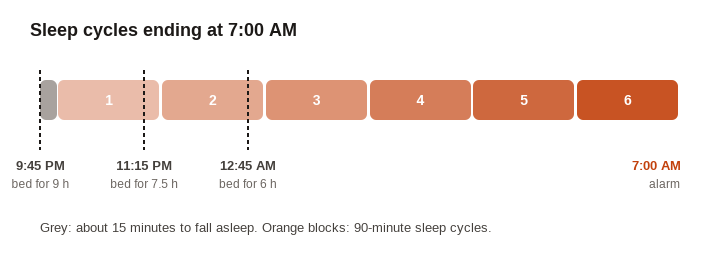
The sleep planner under the tool uses a simple method: it counts back 6, 5 and 4 complete 90-minute sleep cycles (9, 7.5 and 6 hours) from your alarm and adds about 15 minutes to fall asleep.
The 90-minute figure comes from sleep research: the National Institute of Neurological Disorders and Stroke says REM sleep first shows up about 90 minutes after you fall asleep and that cycles repeat several times a night. Treat the bedtimes as a planning aid, not medical advice; for the 6:30 AM example they are:
| Sleep cycles | Sleep time | Bedtime for a 6:30 AM alarm |
|---|---|---|
| 6 cycles | 9 hours | 9:15 PM |
| 5 cycles | 7.5 hours | 10:45 PM |
| 4 cycles | 6 hours | 12:15 AM |
Need a different tool? Browse all alarm clocks.
Bedtime suggestions are general guidance based on average 90-minute sleep cycles, not medical advice. Talk to a doctor about ongoing sleep problems.
Frequently asked questions
Will the online alarm clock ring if I close the tab?
No, the online alarm clock will not ring if you close the tab, because the page itself does the timing and plays the sound. You can switch to another tab or minimize the window; only closing the tab, quitting the browser or shutting down the computer stops it, and an alarm already sounding stops ringing the moment its tab closes.
Leaving the page visible is safest on laptops that save power aggressively, and locking a phone screen often pauses it. The tool can't check the time once its page is gone.
Does the online alarm clock work when the computer goes to sleep?
No, the online alarm clock does not work while the computer sleeps, because a sleeping or hibernating machine pauses the browser. Set sleep mode to never while plugged in, keep the laptop open rather than closing the lid, and disable any screensaver that turns into sleep. If your device hibernates or will pause after an hour, the alarm can't ring; keeping it plugged in with the laptop lid open avoids that.
The tool asks the browser to keep the screen awake while an alarm is set, where the browser supports that feature.
Does the alarm need Wi-Fi or an internet connection to ring?
You need an internet connection to load the page, but the alarm itself is timed by your device clock rather than a server. The five sounds are generated in the browser instead of being downloaded, so there is no wait while alarm sounds finish loading. If you lose connection after setting the alarm, the page can keep counting; just don't reload it while offline.
With an internet connection for the first load, nothing else is needed overnight.
What happens if my computer is muted when the alarm goes off?
If your computer is muted, the alarm still shows its Stop and Snooze buttons on screen, but you won't hear anything. The volume slider in the tool is adjustable, yet it can't override a muted system or unplugged speakers. That visual alert is easy to sleep through, so unmute the computer, raise the volume until a test is loud enough to hear from bed, and check headphones aren't still connected.
Can I use the online alarm clock on my phone?
Yes, the online alarm clock opens in a phone browser, but phones are the least reliable place for it, because they suspend hidden tabs to save battery. If you use it on a phone, keep the page in the foreground with the screen on and the charger connected. The layout is responsive, and the clock is readable at a glance, but your phone's built-in clock app is the better backup for an important wake-up.
How long is the snooze?
The snooze lasts 5 minutes. Press Snooze 5 min or the S key and the same alarm, label and sound return after that interval. The default cannot be changed, so if you hit snooze three times you will be fifteen minutes behind; a planned later alarm usually gives better rest than repeated snoozes.
Can I change the alarm sound?
Yes, you can change the alarm sound by picking one of five tones before you press Set alarm: Beep, Chime, Digital, Soft or Bell. The sound menu sits under the time, next to the volume slider, and Test sound plays your pick. Your choice is remembered next time. A short message in the label field adds context, but the sound is what wakes you.
Is the alarm time exact to the second?
The alarm time follows your device clock, so its accuracy is the accuracy of that clock, usually well within a fraction of a second when synced. If the time shown above looks wrong, turn on automatic time in your device settings and reload the page before setting the alarm. Phones and computers normally sync with a network time server through the operating system, and the page reads that system time directly.
Because it is synced this way, the display shouldn't drift; it ticks on each second boundary with the device.
Why does the browser need a click before the alarm can make sound?
Browsers need a click first because autoplay rules block audio until a user interacts with the page. Pressing Set alarm or Test sound counts as that interaction and enables sound for the tab, so you only do it once. That's why a page opened in the background and never touched may stay silent; always click inside the alarm page before you go to bed.
Are my alarm settings saved?
Your sound and volume settings are saved in your own browser, and nothing is sent to a server. The preferences are stored locally, are never uploaded, and clearing site data removes them. A reopened or refreshed page comes back with the same sound choice, but the alarm itself is not restored, so set it again.
Is the online alarm clock free?
Yes, the online alarm clock is free, with no subscription and all five sounds included. People use it for classrooms, meetings, study sessions and presentations as well as for getting up.
Relying on the tool requires nothing more than an open tab, because browsers require a live page to play sound, and the same free page works for evening reminders too.
Can I switch between 12-hour and 24-hour time?
The alarm clock follows your locale: it shows the 12-hour format with AM/PM where your region uses it, and 24-hour time otherwise, so there is no manual choice to make. Either format sets the same moment, so a 6:30 alarm rings at 6:30 whichever way your device writes it.