What is an online timer, and how do you set one?
An online timer is a free countdown in your browser: you type hours, minutes and seconds (or tap a preset), press Start, and it rings when it reaches zero, with no app or account.
On this page
The appeal is speed. A preset button starts the moment you tap it, so the pasta, the plank or the call starts on time instead of after a hunt for your phone's clock app. Whoever has to cook dinner and join a call at once ends up using two of these on two tabs.
What makes a browser timer trustworthy is that it fixes the finish time at the start, using the browser clock, and then simply works out the time remaining until that moment. Nothing drifts while you scroll other tabs.
The tab title shows the countdown too, which I find handy during presentations: a glance at the tab bar replaces a glance at a watch. If you allow it, a desktop notification pops up at the end even when the browser is behind other windows.
How to use the online timer
The online timer needs a length, a press of Start, and nothing else; every other setting is optional. Here is the order I use:
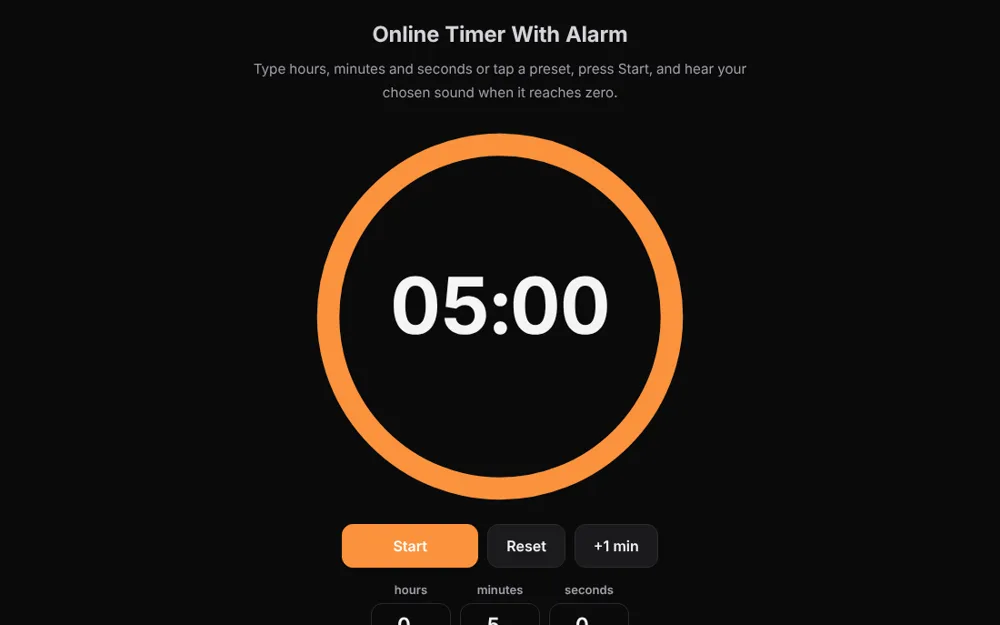
- Set the length: Type hours (0–99), minutes (0–59) and seconds (0–59), or click a preset, which starts at once.
- Pick a sound: Choose Beep, Chime, Digital, Soft or Bell, set the alarm volume slider, and press Test sound.
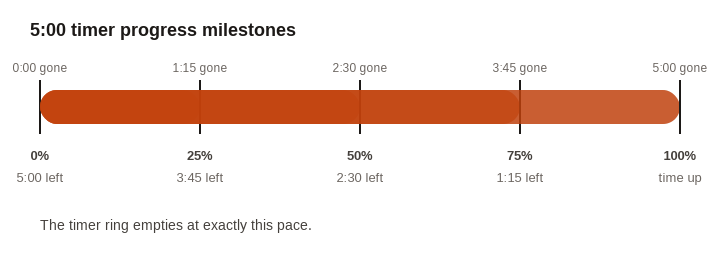
- Start: Press Start. The progress ring around the time shrinks as it runs, much like a progress bar.
- Adjust or finish: Use +1 min to add time while running, Pause to hold, and Reset to go back.
Worked example: enter 0 h, 12 min, 30 s and press Start at 3:05:00 PM. The timer is set to end at 3:17:30 PM. Press +1 min once and the end moves to 3:18:30 PM; at that moment the chosen sound plays and the banner says "Time's up!".
A bell or a chime cuts through kitchen noise; a soft tone suits a library, and a digital beep feels most like a classic kitchen timer. The longest setting is 99:59:59; anything past zero or outside those ranges gets a friendly error.
Which preset times can you start with one click?
Preset buttons cover the lengths people reach for most, such as 30 seconds, 1, 3, 5, 10, 15, 25 and 30 minutes and 1 hour, and each one starts as soon as you click it. For anything else, type your own length up to 99:59:59.
| Preset | Typical job | Why that length |
|---|---|---|
| 30 s – 1 min | Plank, steeping, quizzes | Short timed workouts and rapid rounds |
| 5 – 15 min | Tea, a coffee break, a quick tidy | Small time blocking slots |
| 25 – 30 min | Deep-work block, a speaker rehearsal | Long enough to finish one task |
| 1 h | Bread rising, an exam paper | One uninterrupted session |
If a preset is almost right, start it and press +1 min. I add a minute this way far more often than I type a custom time.
What happens when the online timer reaches zero?
When the online timer reaches zero, your chosen sound rings for up to 60 seconds and a "Time's up!" banner appears with Stop alarm and Restart buttons. You can also turn on a desktop notification and "Repeat when finished", which starts the same length again after 3 seconds.
That repeat cycle is the feature I use for interval sets: 45 seconds on, then it starts over without a touch. Pressing Restart runs the last length once; Stop alarm (or Esc) silences it.
If nothing plays, the usual causes are a tab on mute or the system volume turned down, since the alarm sounds are generated by the page itself. On a projector in full screen, the banner is large enough to read from the back of a room, and Space pauses or resumes without touching the mouse.
How does the online timer keep accurate time?
The online timer keeps accurate time by fixing the end moment as start time plus the set duration, then checking that moment against the device clock four times a second. A countdown built this way does not depend on how often the page redraws.
This matters because a browser-based timer lives inside a tab that the browser is allowed to slow down. Animations in background tabs run slowly, but the end check still compares real clock time, so the alarm fires on schedule on computers and phones alike.
When you pause, the timer stores what is left; when you resume, it calculates a fresh end moment from now. No alarm is scheduled on a server, which is also why nothing about your timer leaves your device.
Why didn't the timer make a sound?
The timer usually stays silent for one of three reasons: the page has not been clicked yet, the sound is muted, or the tab was closed. Browsers block web audio until you interact with a page, so press Test sound once before you rely on it.
- Interact first: Click anywhere on the page or press Test sound; this grants the browser permission to play audio.
- Check volume: Look at the tab's mute icon, the volume slider and the system volume.
- Keep the tab open: The sound comes from the page, so leave the tab open and the computer awake.
Phones that are locked may hold back web sounds, so keep the screen on (the timer asks the browser to keep it awake where supported). A late finish after switching tabs is a symptom of older timers that count frames during background throttling; this one checks the clock, but the alarm is still most dependable with the tab visible.
What can you use an online timer for?
An online timer suits any job with a known length, from boiling pasta to keeping a meeting agenda honest. I group the uses by how long they run, because the length decides whether you need a preset or a custom time.
Short runs of seconds to a few minutes cover planks, steeping tea and speed rounds. Mid-length focus sessions, such as a 25-minute block or 45 minutes of reading, are the classic desk use.
At 1 hour and above, it becomes an oven or study companion. Event hosts sometimes rely on wrap-up colors on stage timers; here the shrinking ring does the same job quietly, with no sign-up and nothing to configure.
One habit worth copying: set the timer slightly shorter than the real limit. A 9-minute countdown for a 10-minute talk slot leaves a minute to land the last point instead of being cut off mid-sentence.
Can you run several timers or work-and-break sessions?
You can run several timers by opening the page in more than one tab, since each tab keeps its own countdown and alarm. For a teacher in a classroom, one tab can time group work while another times a pack-up warning.
For work and break blocks, "Repeat when finished" handles identical rounds, but alternating lengths belong to the pomodoro timer. When you want to know how long something takes rather than limit it, the online stopwatch counts up instead. A parent timing screen time for a young child usually wants one big countdown, not a list.
Planners for meetings, webinars, livestreams or church services often use rundown software. For practice exams, one timer per section is simpler: set it, start it, and repeat the length for the next paper. Running two tabs at once is fine, but give each a different sound so you know which one just rang.
Need a different tool? Browse all timers & stopwatch.
Frequently asked questions
Is the online timer free?
Yes, the online timer is free, with no account and no paid tier. Every alarm sound and preset works straight away, and your sound, volume and theme choices are remembered in your browser, whether you like a light page or dark mode. The interface is kept small on purpose: instant presets, custom fields and a quick +1 min button.
Will the timer alarm still ring if I'm in another tab?
Yes, the timer alarm still rings when you are in another tab, as long as the page stays open and you clicked the page once. Avoid a reload mid-countdown: the running countdown is not restored, and the browser may need a fresh click before it can play sound. No sound after the first visit is usually that missing page interaction, which is intentional browser behaviour, not a fault.
Each tab works independently, so you can label tabs in your head by their titles. Timers in different tabs are independent of each other; for time boxing, a preset per task is enough.
Can I share or bookmark a timer setting?
Yes, you can share a timer setting: the Copy link and Share buttons create a shareable link that reopens the timer with the same length. You can bookmark that link too, which works like a personal preset.
The alarm plays from the page, so the tab must stay open while it runs; a link opened in another tab loads the same length there, ready for you to press Start. The link keeps the exact length you chose, from a few seconds to a long break.