What is a full screen timer, and when do you need one?
A full screen timer is a countdown that fills your whole display with large digits, so a room, class or audience can read the time left from a distance; press F or the Full screen button to switch it on.
On this page
- How to use the full screen timer
- How do you put the timer on a projector or TV?
- Which background works best on a projector or in a dark room?
- Does full screen work on phones and tablets?
- How does the full screen timer keep accurate time?
- What do people use a full screen timer for?
- Can someone else control the timer from another device?
You need one whenever the person watching the clock is not the person at the keyboard. A small timer in a browser corner is fine at a desk, but at a distance of a few meters it turns into a blur. Full screen mode makes the numbers scale up to the edges of the screen, so they stay readable from the back of the room.
Typical moments are an exam hall, a team keynote or a gym class. In each case the laptop sits at the front, the F key flips the display, and everyone else just looks up.
Two smaller details matter more than they seem. The page asks the browser for a screen wake lock where it is supported, so the display does not dim mid-countdown. And a dark room plus a bright white page means glare, which is why the background choice below is worth a minute of thought.
How to use the full screen timer
The full screen timer works like any countdown, with one extra press to fill the display. Set it up before people arrive:
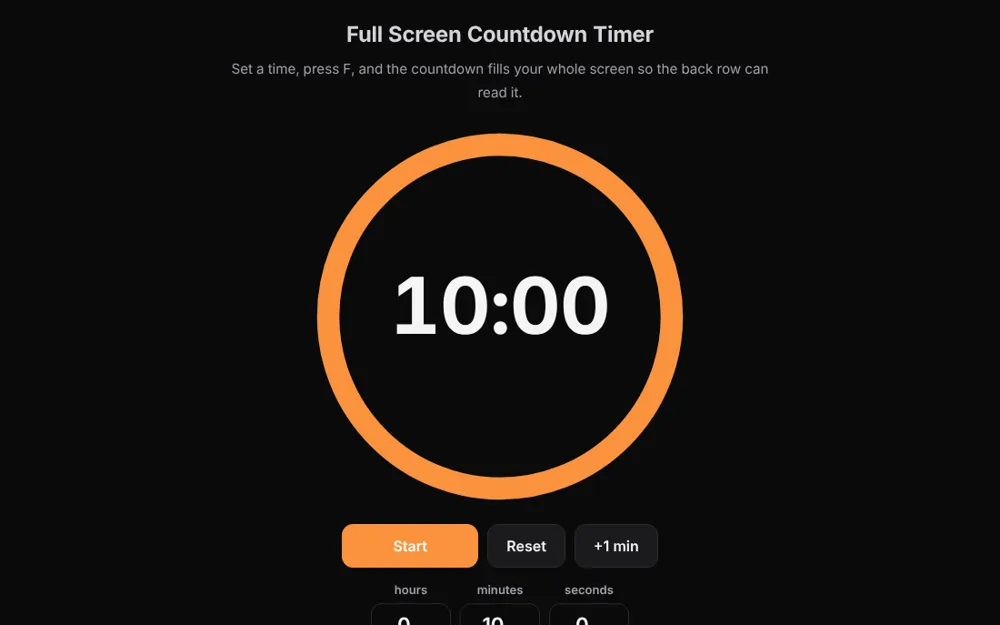
- Set the time: Type hours, minutes and seconds, or tap a preset such as 5, 10, 15, 25 or 30 minutes; a preset starts at once.
- Choose the sound: Pick a sound and volume and press Test sound, so the chime or alert is loud enough to carry across the room.
- Go full screen: Press F or the one-click Full screen button, then Start (or Space).
- Manage the run: Press + to add a minute, Space to pause, and Esc to stop the alarm at zero.
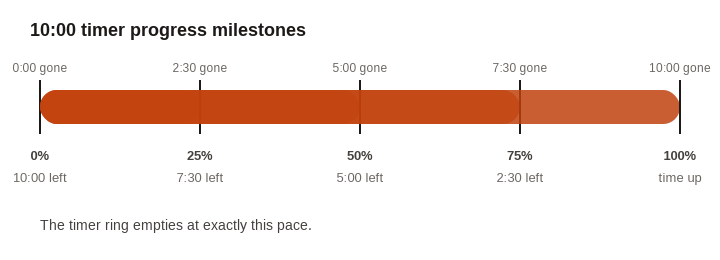
Worked example: a speaker has a 20-minute slot. Set 0 h, 16 min, 0 s (80% of the slot), press F, then Space. The digits fill the screen size of the projector, the ring shrinks for 16 minutes, and at zero the sound plays with a "Time's up!" banner, leaving 4 minutes for questions.
This is a browser-based tool, so on a phone the result depends on the browser. On an iPhone, opening the page in Safari and adding it to the Home Screen gives a more standalone view than a normal tab.
How do you put the timer on a projector or TV?
You put the timer on a projector or TV by connecting your laptop, opening the timer on that laptop, and pressing F so it fills the external display. Projectors and TVs treat the laptop as a second monitor, so make sure the browser window sits on the right screen before going full screen.
- Connect: Plug in the cable and choose "duplicate" or "extend" in your display settings.
- Open and move: Drag the browser window onto the projector or TV.
- Fill it: Press F or the Full screen button; the digits grow until the countdown fills the available area.
- Check: Walk to the back and read it; press Escape to step out if you need to adjust.
The same steps cover classroom screens and shared screens in meeting rooms. On projectors, a pure black background (#000000) throws less light than dark gray (#1a1a1a), and on OLED panels black pixels draw less power, which some pages link to battery savings.
Which background works best on a projector or in a dark room?
The background that works best in a dark room is the darkest one you can choose, with bright digits on top, because it gives the most readable figures with the least spill of light. White pages look fine on a laptop at noon and harsh on a wall in a dim hall.
In practice the trade-off depends on the screen. Smart TVs in a bright room handle a light theme well, while a projector in dim spaces, from rehearsals rooms to kitchens used for cooking demos, favors dark. A large-format display gains maximum contrast when the digits are bright and the surround is near black.
The screen stays uncluttered too: just the digits, the ring and the buttons. If you want an even plainer look, try the minimalist timer. Your theme and sound choices are remembered in the browser, so the next session looks the same, and the countdown stays visible without fiddling.
Does full screen work on phones and tablets?
Full screen works on phones and tablets, but how much of the browser disappears depends on the device and the browser. Test it on your own device before a session; the gap between a phone and a laptop is often just a strip of buttons at the edge.
For a bigger audience, a phone works better as the remote than as the display. Casting from the phone to a TV, or connecting a laptop over HDMI, puts the countdown on the display device that people can actually see. Just open the page on whichever device drives the big screen.
The layout resizes automatically to whatever screen it lands on. One caveat: the screen wake lock request can be refused by the browser or released when a phone switches apps, so plug in and check the screen-off setting on long runs.
How does the full screen timer keep accurate time?
The full screen timer keeps accurate time by fixing the end moment as start time plus the duration, then checking it against the device clock four times a second. Going in or out of full screen, or redrawing large digits, does not shift that end moment.
That holds for any duration, from a 5-minute break to the maximum of 99:59:59. Presets of 5, 10 and 30 min, or a 1 hour block, follow the same rule: the clock comparison, not a frame counter, decides when it rings.
In my own setups the more common problem is not drift but a sleeping screen. The timer asks the browser to keep the display awake while it runs, where the browser supports the Screen Wake Lock API, and shows the time left in the tab title as a backup.
What do people use a full screen timer for?
People use a full screen timer anywhere a group shares one clock: talks, classes, workouts and events. The table shows common settings and a length that works as a starting point.
| Setting | Suggested length | Tip |
|---|---|---|
| Presentation | About 80% of the slot | Leaves time for questions |
| HIIT round | 30 s work, 15 s rest | Turn on Repeat when finished |
| Tabata round | 20 s work, 10 s rest | Use Repeat when finished for each round |
| Class activity | 10–15 min | Add a minute instead of restarting |
For theaters, dark venues and night events, dim the room and use a dark page to cut light pollution on stage. The display updates every second, which gives all the precision an audience needs, as long as you keep the sound enabled for the final alert.
Can someone else control the timer from another device?
No, this timer runs only in the browser where you open it, so the presenter cannot have it driven from another device. The workaround is to put the laptop with the timer within reach of whoever is running the session.
For webinars or church services, that is often a volunteer at the tech desk. If the event is a date rather than a length, the countdown timer counts down to it, and for a short break between speakers the online timer is enough. Each segment gets its own preset or a typed time, and a quick + adds a minute when a speaker needs it.
A rule that helps on long programs: set each speaker's timer to about 80% of their allotted slot, and treat the final seconds as the cue to wrap up. Changeovers and agenda blocks in between can use a short preset, so the room always knows when the next part starts.
Need a different tool? Browse all timers & stopwatch.
Frequently asked questions
Is the full screen timer free?
Yes, the full screen timer is free, with no signup and no paid upgrade. Every preset, sound and the Full screen button work straight away for HIIT classes, Tabata sets, circuits, a classroom clean-up, a workshop exercise or a countdown before product launches.
Nothing about your timer is sent to a server. Your sound, volume and theme choices are stored only in your own browser, so a shared classroom computer keeps its settings without anyone signing in.
Does the timer keep running if I leave full screen?
Yes, the timer keeps counting when you leave full screen, because the end moment is fixed and checked against the device clock. It also keeps time in background tabs, with the remaining time in the tab title.
On tablets and phones, the status bar or some browser controls may stay on screen in full screen mode. Nothing is scheduled on a server or linked to an account, so you stay in control on the device you are using.
Can I show the timer in OBS or on a livestream?
Yes, you can show the timer in OBS by using a window capture of the browser, or a browser source pointed at the page. The countdown keeps running if you exit full screen, switch tabs or leave it in the background, and Copy link lets you reopen the same length later.
The page has no transparent background mode for stream overlays, so crop or key it in OBS if needed. The page is responsive and needs no sign-up, which suits livestreams on a tight setup.