What is a classroom timer, and how do teachers use one?
A classroom timer is a large countdown shown on the board so the whole class can see how much time is left for an activity, with a sound when time is up. Teachers use it for quizzes, transitions, group work, stations and breaks, so students pace themselves and the teacher no longer has to call out the time.
On this page
The classroom timer on this page shows the countdown as a shrinking coloured disc with the digits in the middle, which works for children who cannot read a clock yet. Set hours, minutes and seconds or press a preset, then press Start (for a quick transition, the 5 minute timer is one click away); full screen turns any laptop or board into a dedicated display.
It is free and needs no sign-up or installation. As a classroom management habit, I find one visible timer saves more lesson time than any amount of reminding, because time-management skills grow when the back row can read the answer to "how long left?" without asking.
Why does a visible countdown help a class?
A visible countdown helps a class because it makes the time limit shared and concrete: everyone sees the same deadline, so students manage their own pace and the teacher can stay with the group instead of announcing minutes.
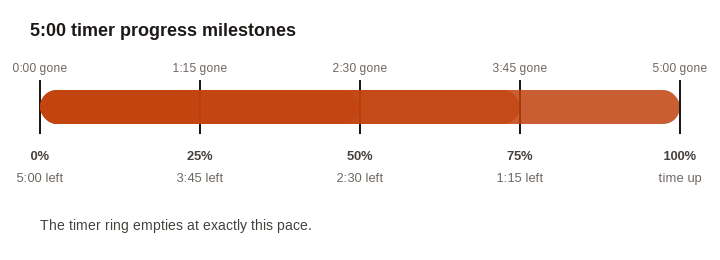
The disc does the job of a visual shape on a physical timer. Half the colour gone means half the time gone, and younger pupils grasp that long before they can subtract minutes. The shrinking disc itself is the cue, which keeps the screen calm.
Routines tighten too. When the timer, not the teacher, announces the end of free time, clean-up or a game like hot potato or tower-building, the end feels fair rather than personal. Over a term, that repetition quietly builds the habit; group discussions and think-pair-share bursts benefit the same way.
Which classroom activities work best with a timer?
The classroom activities that work best with a timer are the ones with a clear start and end: quizzes, station rotations, discussions, presentations, transitions and brain breaks. The table matches common activities with what the countdown does for them.
| Activity | What the timer does |
|---|---|
| Quizzes and timed tests | Shows the full duration so students judge their own pace |
| Timed centers and station rotations | Gives every group identical time and signals the move |
| Think-pair-share and group discussions | Keeps short talk bursts on task with a shared deadline |
| Student presentations | Gives fair speaking turns that nobody can dispute |
| Clean-up and transitions | Turns packing up into a race against the clock |
| Brain breaks | Bounds a burst of jumping jacks or yoga so it ends on time |
For fluency reads, timed writing or lab work, where you want to know how long something took, count up rather than down with the online stopwatch. Students can also open the timer on their own devices for independent reading or drafting at their own pace.
What should a timer for the classroom be able to do?
A timer for the classroom should be readable from across the room, easy to set in seconds, quiet while it runs, and clear when it finishes. Everything else is a bonus.
Readability comes first. Full screen fills the display with the disc and digits, and on projectors, interactive boards, a whiteboard or classroom TVs the largest digits on a high-contrast, dark background are what the far corner needs. Test it from the last desk before the lesson starts.
Sound comes second, especially for timed centers and brain breaks, where students are moving and not watching the screen. The end sound should be optional and short, not a loud siren or continuous music.
This timer offers five generated sounds (Beep, Chime, Digital, Soft and Bell) with a volume slider and a Test sound button, and the sound rings for up to 60 seconds unless you stop it. For quiet work, keep the sound muted and let the disc speak.
How to use the Classroom Timer
The Classroom Timer runs in any browser on the classroom computer, and setting it up takes a few seconds:
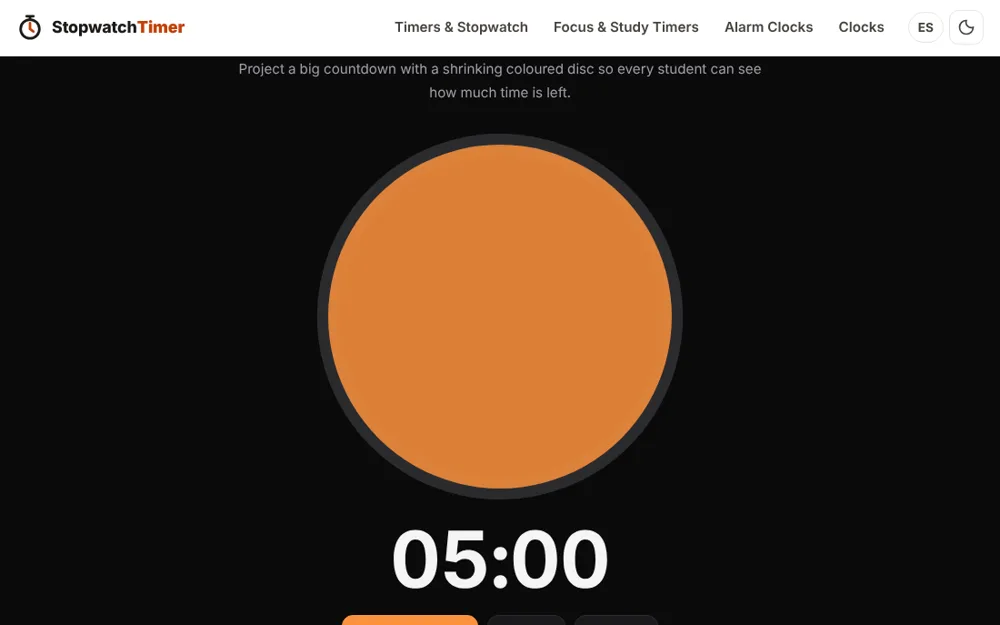
- Type hours (0–99), minutes (0–59) and seconds (0–59) for a custom duration, or press a preset button, which starts that length straight away.
- Press Start (or Space) and the coloured disc begins to shrink; Pause, Resume and Reset are one click away for interruptions.
- Press +1 min (or the + key) to add a minute while it runs, and F for full screen so the menus and other page navigation are out of view.
- When time is up, the chosen sound plays and a "Time's up!" banner appears with Stop alarm and Restart; Esc stops the alarm.
Worked example: for station rotations, enter 0 hours, 8 minutes, 0 seconds and turn on Repeat when finished. Result: an 8-minute countdown that rings when it reaches 0:00, then restarts automatically after 3 seconds, so every group gets identical time without you touching the keyboard.
An optional desktop notification can also fire at the end, which helps if the timer is in a background tab during a presentation or while you time speaking turns. Your sound and volume choices are remembered by the browser for the next lesson.
How does the Classroom Timer keep accurate time?
The Classroom Timer keeps accurate time by fixing the end moment as the start time plus the duration and checking it against the device clock 4 times a second, so it finishes on time even when the browser tab is in the background.
Browsers apply throttling to background tabs and slow down animations, so the disc may move less smoothly after tab switches, but the end check is not slowed and the finish signal still arrives on time. The remaining time also shows in the browser tab title.
Where the browser supports the Screen Wake Lock API, wake lock keeps the screen from sleeping while the timer runs, which matters on a laptop connected to a projector during a long test. Nothing is sent to a server; the timer runs entirely in the browser, whether the class is doing independent reading, drafting, jumping jacks or yoga.
Need a different tool? Browse all timers & stopwatch.
Frequently asked questions
Is the classroom timer free, and do I need an account?
Yes, the classroom timer is free and needs no account. It runs in the browser with nothing to download or register, and it works for lessons, activities, study sessions and exams. Because it runs in the page, keep the tab open while a timer is going; I would not rely on it offline without testing first.
Can students see the timer from the back of the room?
Yes, students can see the timer from the back row when you use full screen, because the disc and digits then fill the whole display. Check the size on your own projector or board, and dim the lights near the screen if the room is bright. The shrinking disc shows the time left at a glance.
Can I mute the alarm for tests and quiet work?
Yes, the alarm can be muted in practice by turning the volume slider down, so the timer ends silently with only the "Time's up!" banner. That suits tests and quiet work, where a loud tone would interrupt students still writing. Short end tones such as Soft or Chime are a gentle middle option that keeps the room calm.
Can the timer count up as well as down?
The classroom timer counts down only; to count up, use the online stopwatch, which records elapsed time with laps for fluency reads, timed writing or lab work. You can keep both open in separate tabs, the countdown for the activity and the stopwatch for timing individual students.