How do I set a timer for 15 minutes?
You set a timer for 15 minutes by clicking the 15 min preset, which starts counting down from 15:00 straight away, or by entering 0 hours, 15 minutes, 0 seconds and pressing Start. At zero the chosen sound rings and a "Time's up!" banner appears.
On this page
- What fits naturally into a quarter of an hour?
- Why does a visible 15-minute countdown keep you on task?
- How to use the 15 minute timer
- How does the 15 minute timer keep accurate time?
- What can I adjust on the 15 minute timer?
- Does the 15 minute timer remember my choices?
- Why is 15 minutes such a common planning unit?
- When should I pick a longer timer instead?
Fifteen minutes is 900 000 milliseconds and exactly 25% of an hour, which is why it lines up so neatly with calendars, class periods and meeting agendas. It is the length I reach for when ten minutes feels rushed and half an hour feels like a commitment.
My own uses split three ways: a focused work block, a planned pause during a workshop, and a limit on something that tends to sprawl, like scrolling or tidying, so the day turns into a set of structured intervals. The timer runs in any browser on mobile or desktop, with no account and nothing to install.
What fits naturally into a quarter of an hour?
A quarter of an hour fits one focused piece of work, one planned pause or one short talk, with a clear start and end. The length is a sweet spot for many people: enough time for real progress, but short enough that you rarely lose focus before the alarm.
For work, fifteen minutes is a compact version of the Pomodoro idea: one task, no interruptions, then a pause. Structured study blocks of this size suit revision days, and remote workers often use them to break up long screen sessions with a stand-up stretch.
It also suits mid-length talks and workouts that need more than a quick burst. The table shows how I usually fill the block, from a middle-length presentation slot to a recovery pause. In my experience, a fixed block makes time feel tangible, and several fixed blocks in a day keep the work from sprawling. These are my own patterns, not fixed rules.
| Block type | What happens in the 15 minutes | Why the length fits |
|---|---|---|
| Focus block | One task, phone face down, notes ready | Long enough to get past the warm-up |
| Short talk | 10 to 12 minutes speaking, the rest for questions | Keeps a talk tight without rushing |
| Workshop pause | Coffee, stretch, back in seats on the sound | Long enough to rest, short enough to keep energy |
| Kitchen check | Oven or pan check when the sound plays | Matches many recipe checkpoints |
Why does a visible 15-minute countdown keep you on task?
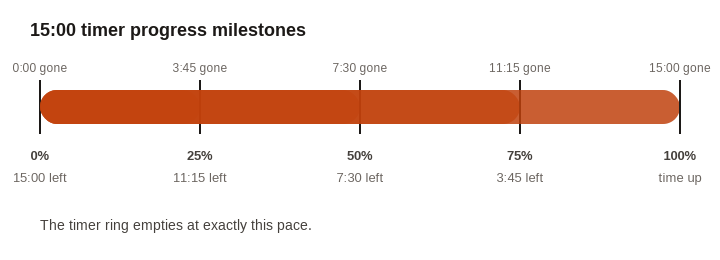
A visible 15-minute countdown keeps you on task because the shrinking ring answers "how long is left?" before you have to ask, so your attention stays on the work. That small saving matters most in timeboxing, where the whole point is to stop when the box ends.
The ring also makes transitions easier for kids. "When the ring is empty, screen time is over" lands better than a vague warning, and the same works for play time before homework or bed. I find children argue with the timer far less than with a parent.
For adults, a quarter-hour cap can make a draining job feel more manageable: you know the end is fixed, so it is easier to push for the full block. A study sprint of fifteen minutes, followed by a short pause, is a rhythm I return to on long revision days. A 15 and done cleanup of one room, a mindful break of journaling or walking, or a task you have been avoiding all fit the same pattern. These are personal observations.
How to use the 15 minute timer
You use the 15 minute timer by clicking the 15 min preset or typing 15 into the minutes field, choosing a sound and pressing Start; it rings at zero and shows a "Time's up!" banner. The page runs in your browser and remembers your sound, volume and theme.
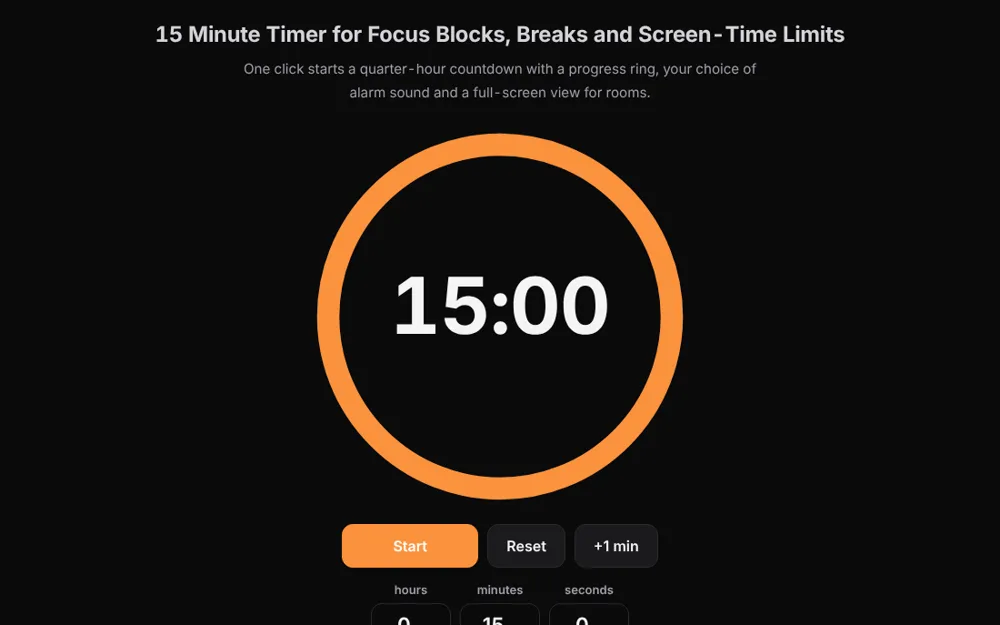
- Click the 15 min preset (it starts at once), or type 0 h, 15 min, 0 s and press Start.
- Choose Beep, Chime, Digital, Soft or Bell, set the volume and press Test sound.
- Press the Space bar to pause and resume, or + to add a minute while it runs.
- Press F for full screen so the room can see the countdown.
- At zero, press Stop alarm or Esc, or Restart for another fifteen minutes.
Worked example: at a half-day workshop I used the timer for conference breaks; the conference talks themselves ran in 20-minute slots. I set 0 h, 15 min, 0 s, chose Bell at high volume and opened full screen on the projector. When two speakers ran late, I pressed + twice at the start of the break instead of resetting. Result: a 17-minute break, everyone back on the Bell, and the next session started on time.
How does the 15 minute timer keep accurate time?
The 15 minute timer stays accurate because it sets the end moment as start time plus fifteen minutes and checks it against your device clock four times a second. It never counts by adding up ticks, so the timer does not drift if the page is busy.
Hidden tabs get throttled by the browser, yet the end check still runs, so the alarm sounds on time while another window is in front. The remaining time also shows in the tab title, and the screen is kept awake where the browser supports it.
The reference is your device's own wall-clock time, a reliable way to track time, which is accurate enough for study, cooking and talks. I have not benchmarked the timer to the 100 ms level, so for lab work or official events use dedicated timing equipment.
What can I adjust on the 15 minute timer?
You can adjust the length, the sound, the volume and the theme on the 15 minute timer, and the rest stays simple on purpose. Type any length from a single second up to 99 hours, 59 minutes and 59 seconds, or press + mid-countdown to add a minute.
You type the time or click a preset, which is quicker and more exact than turning a dial. The ring empties as time runs down, and full screen shows it large on a smart TV or projector.
The alarm is the sound of your choice, and it rings at zero for up to 60 seconds. For a silent visual timer, lower the volume slider to zero. On a tablet, full screen works the same way, so pick the light or dark theme that reads best in your room.
Does the 15 minute timer remember my choices?
Yes, the 15 minute timer remembers your sound, volume and theme in your browser's local storage, so it opens the way you left it. Those preferences stay on your device and are never sent to a server.
A running countdown is not stored, so if you close the tab you simply start again. When the alarm rings, Restart begins a fresh fifteen minutes.
The timer works the same on all devices. To get back to the same setting quickly, use the Copy link or Share button and bookmark the link it copies. That works well if you use the timer daily for the same routine, such as a morning guided meditation or a yoga flow.
Why is 15 minutes such a common planning unit?
Fifteen minutes is a common planning unit because four of them make an hour, so calendars, class timetables and billing systems can all divide a day into equal fifteen-minute slots. A block of this size is easy to add up and easy to move.
That arithmetic shows up in scheduling everywhere: meetings booked in 15-minute increments, admin tasks batched into one block, appointments with a fifteen-minute buffer. Fixed blocks also make procrastination harder, because there is no vague "later" for distractions to fill. For me, a 15-minute slot is the smallest unit worth putting on a calendar.
At home, the same length covers baking cookies in many recipes, an oven reminder for a roast, or steeping tea, though recipe and packet times always come first. It is also the length many people use for a power nap, which is general information rather than health advice.
When should I pick a longer timer instead?
Pick a longer timer when the activity has a fixed format longer than fifteen minutes, such as a TED Talk, which runs about 18 minutes, or a full revision session. Rounding down to fifteen would cut the ending off.
TED-style talks, speed-meeting rounds and tests all come with their own time rules, so enter the real limit rather than forcing them into a quarter of an hour. For a sitcom episode or a long intense workout, the 30 minute timer is the better fit, and for a full focus session the 25 minute timer or the pomodoro timer adds breaks between blocks. If fifteen minutes is too long, the 10 minute timer is the next step down.
For kids' drills, rest periods and intervals inside a workout, fifteen minutes is usually too long; use shorter blocks and chain them with Repeat when finished. Fifteen minutes stays my default for one focused job, not for everything.
Need a different tool? Browse all timers & stopwatch.
Frequently asked questions
Is the 15 minute timer accurate?
Yes, the 15 minute timer is accurate for everyday use because it compares a fixed end time with your device clock several times every second. Any lag is a small fraction of a second over the full fifteen minutes. For official competitions, use the timing method the organiser specifies.
Can I change 15 minutes to a different length?
Yes, you can change 15 minutes to a different length by typing new values into the hours, minutes and seconds fields and pressing Start. The seconds and minutes fields accept 0 to 59, and hours go up to 99. Press + while it runs to add a minute without restarting.
Does the 15 minute timer warn me before it ends?
No, the 15 minute timer does not warn you before it ends; it rings once at zero and stays silent until then. Watch the progress ring instead: when only a sliver is left, you have seconds to wrap up. If you need a checkpoint, run a shorter countdown first and then the remainder.
Does the 15 minute timer work on phones?
Yes, the 15 minute timer works on phones and other touch devices with a current browser, including full screen mode. Keep the tab in front and the screen on, because some phones pause background pages when the screen locks. Raise the volume before you start.
Can I put the 15 minute timer on a big screen?
Yes, you can put the 15 minute timer on a big screen by opening the page on a laptop connected to a TV or projector and pressing F for full screen. The digits and ring scale to fill the display. Choose a theme with strong contrast if the room is bright.
What happens if I close the tab during the countdown?
If you close the tab during the countdown, the fifteen minutes stop, but your sound, volume and theme stay saved for next time. Reopen the page and click the 15 min preset to start again. For a countdown that must survive a closed tab, use a kitchen or phone timer.
Does the 15 minute timer store anything about me?
No, the 15 minute timer does not store anything about you; it runs browser only, with no sign-up and nothing sent to a server. Your sound, volume and theme stay on your own device. There is no history of past timers, so clearing your browser data removes every trace.