What is a minimalist timer?
A minimalist timer is a countdown that shows only the time left and a simple progress ring, without accounts, dashboards or extra panels, so one glance tells you where you are and you can go straight back to work.
On this page
- How to use the minimalist timer
- How does the progress ring show time at a glance?
- Why does a minimal timer make focusing easier?
- How do you set up a distraction-free deep work session?
- How does the minimalist timer keep accurate time?
- What can you time with a minimalist timer?
- Which Pomodoro intervals suit a minimalist timer?
- What does a minimalist timer leave out?
The idea is subtraction. You set a duration, start it, and the screen holds nothing else that asks for attention. Reading it at a glance takes a fraction of a second, which keeps the cognitive load of checking the time close to zero.
This page follows that approach: typed hours, minutes and seconds, a preset row, a ring, and a handful of buttons. Press F for full-screen (the full screen timer page does the same by default) and even those fade into the background behind large digits.
I reach for a timer like this for single-task stretches, when the point is to stop switching windows. A busy interface with themes, widgets and stats can become its own distraction; a plain one simply counts down.
How to use the minimalist timer
The minimalist timer takes three moves: set a time, press Start, and look away. Here is the full sequence:
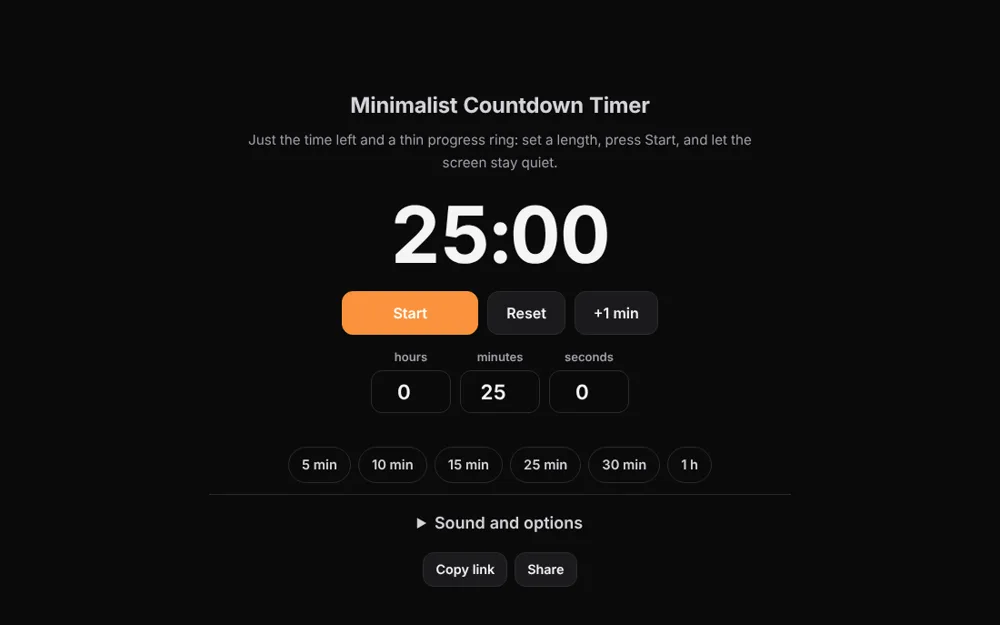
- Set the time: Type hours, minutes and seconds (up to 99:59:59), or tap a preset, which starts immediately. A classic choice is 25 minutes.
- Pick a quiet sound: Choose Soft or Chime, lower the volume, and press Test sound. Leave desktop notifications off if you want the screen to stay calm.
- Start and hide the rest: Press Start or Space, then F. The large digits and the ring are all that remain.
- Finish: At zero the sound plays and a "Time's up!" banner appears; press Esc to stop it, then review what you got done.
Worked example: type 0 h, 50 min, 0 s at 9:10 AM, pick Soft at a low volume, and press Start, then F. The remaining time counts down, the ring closes, and at 10:00 AM a gentle tone ends the block. If the page theme you chose is close to monochrome, the whole screen reads as one quiet number.
How does the progress ring show time at a glance?
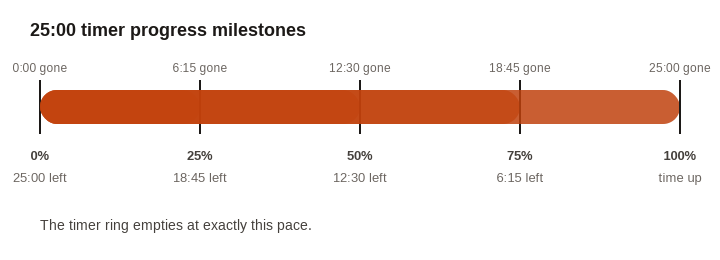
The progress ring shows time at a glance by shrinking as the countdown runs, so the share of the ring left equals the share of the time left. You can tell "about half gone" from across a desk without reading a single digit.
The ring stays thin with the typed digits in the middle, which works for anything from 30 seconds to many hours.
The shape helps in classrooms, too. During transitions between activities, students who ignore numbers still notice a ring that is nearly closed. A thin ring also suits a desk: it signals progress without a heavy block of color in the corner of your eye.
Why does a minimal timer make focusing easier?
A minimal timer makes focusing easier because it gives your eyes nothing to explore except the time itself. Every extra element on screen is something you might click, read or tweak instead of working.
A distraction-free design is stripped down on purpose. A large clock in the middle of a blank page answers one question and then gets out of the way.
There is also a calmer kind of feedback. A ring lets you gauge progress with peripheral vision, which in my experience pulls you out of a task far less than a ticking column of seconds does. The test I use is simple: if I can describe the whole screen in one sentence, it is minimal enough.
How do you set up a distraction-free deep work session?
You set up a distraction-free deep work session by choosing one specific task, setting a custom length that fits it, and putting the timer in full screen before you begin. Decide the break length in advance, too, so the end of the block has a plan.
For deep work or focused study, I close every tab except the timer and the work itself. Pressing F hides the browser chrome, so the nearly invisible controls and the digits are all that remain on screen.
The keyboard helps reduce distractions further: the Space key pauses, + adds a minute, and Esc silences the alert. You never need to hunt for a button with the mouse, which is exactly the kind of small detour that breaks concentration.
How does the minimalist timer keep accurate time?
The minimalist timer keeps accurate time by fixing the end moment as start time plus your chosen length, then checking it against the device clock four times a second. That makes a browser-based timer reliable even when its tab sits in the background.
The method is the same across devices: the browser may slow animations in a hidden tab, but the end check uses real clock time, so a long block still finishes on schedule. Where the browser supports it, the timer also asks to keep the display awake so the digits stay on screen.
That matters for tests and exams, and for kids who are still learning to read clocks and rely on the ring. The remaining time also appears in the tab title if you switch away.
What can you time with a minimalist timer?
A minimalist timer can time any task where the countdown should stay in the background: study, writing, reading or practice. Large type and the absence of visual clutter make it easy to place on a second monitor and forget about.
For students, short blocks suit flashcards, while reading and problem sets need longer runs. Long projects and exam practice often fit a 90/20 rhythm.
For demanding tasks that need a fixed end, the plain numbers keep you honest without nagging. I find the sweet spot is setting the timer once, glancing at it twice, and hearing it once. Writing sessions benefit most, because the urge to check progress is strongest when a draft is going slowly, and a quiet ring answers that urge in a second.
Which Pomodoro intervals suit a minimalist timer?
All the common Pomodoro intervals suit a minimalist timer, because each one is just a length you type or tap. The right choice depends on the person and on the work, so treat these as starting points.
| Interval | Focus and break | Good for |
|---|---|---|
| 25/5 | 25 min focus, 5 min break | Short sprints and timeboxing |
| 50/10 | 50 min focus, 10 min break | Writers, papers and deeper work |
| 90/20 | 90 min focus, 20 min break | Developers and designers on big builds |
Shorter intervals with rests also work for workouts at home. Turn on "Repeat when finished" for identical rounds and the timer restarts itself with no clutter on screen. For alternating focus and break lengths, start each one by hand or use the pomodoro timer.
What does a minimalist timer leave out?
A minimalist timer leaves out everything that is not the countdown: sign-ins, stats and decoration. Nothing needs to be configured before it works.
That restraint suits study-with-me videos, tidy desk setups and quick screenshots, where a clean frame matters. It also works in the kitchen for cooking, when recipe steps just need a number, and on a laptop during presentations.
What you keep is what matters: a sound you chose, a volume you set, and a theme the browser remembers for next time. Nothing about your sessions is sent to a server. Because nothing is stored online, there is also nothing to export, sync or delete later; when you close the tab, the session is simply over.
Need a different tool? Browse all timers & stopwatch.
Frequently asked questions
Is the minimalist timer free?
Yes, the minimalist timer is free, with no sign-in and no paid upgrade. It is a plain timer; if you want stats or task lists, use it alongside a separate study app.
Your sound, volume and theme settings are still remembered in your own browser, so the page opens the way you left it.
What is the best focus interval for a minimalist timer?
The best focus interval for most beginners is 25 minutes of work with short breaks, the 25/5 rhythm of the Pomodoro Technique developed by Francesco Cirillo in the late 1980s. After four intervals, the method suggests a longer rest of 15 to 30 minutes.
If 25/5 feels too choppy, try 50/10 for reading and writing. Some people settle on 90/20 for long projects; run a few days of each and keep the one you finish most often.
Can I change the 25-minute length?
Yes, you can change the 25-minute length to anything up to 99:59:59 by typing hours, minutes and seconds. Common alternatives are 15, 30, 45 or 50 minutes, and +1 min stretches a block that is almost done.
The timer starts the moment you press Start. Presets on the page cover the usual lengths, and a preset starts as soon as you tap it, so a custom time is only needed for unusual blocks.